The Zoho CRM integration is quite difficult to set up. If you are having
trouble or would like us to help you set it up, please contact us via
[email protected].
Table of Contents
1. Zoho CRM
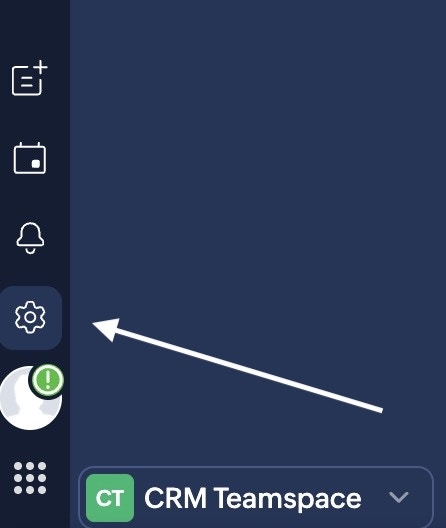
- Go to Zoho CRM and log in. Click the Settings icon in the top-left corner.
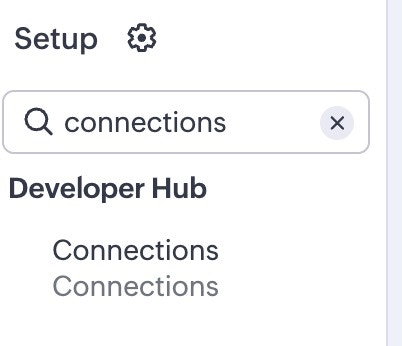
- In the left sidebar, search for connections and click on it.
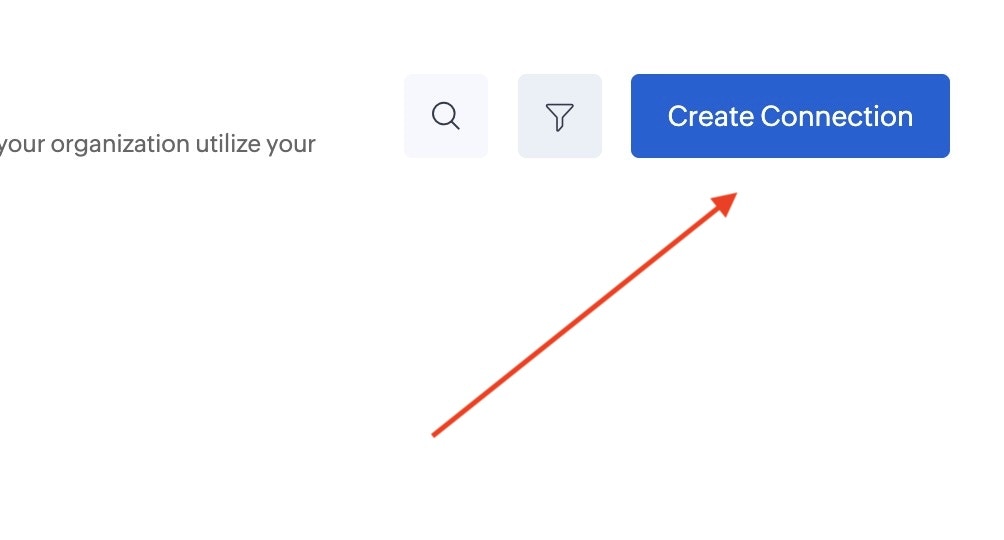
- Click on Create new connection.
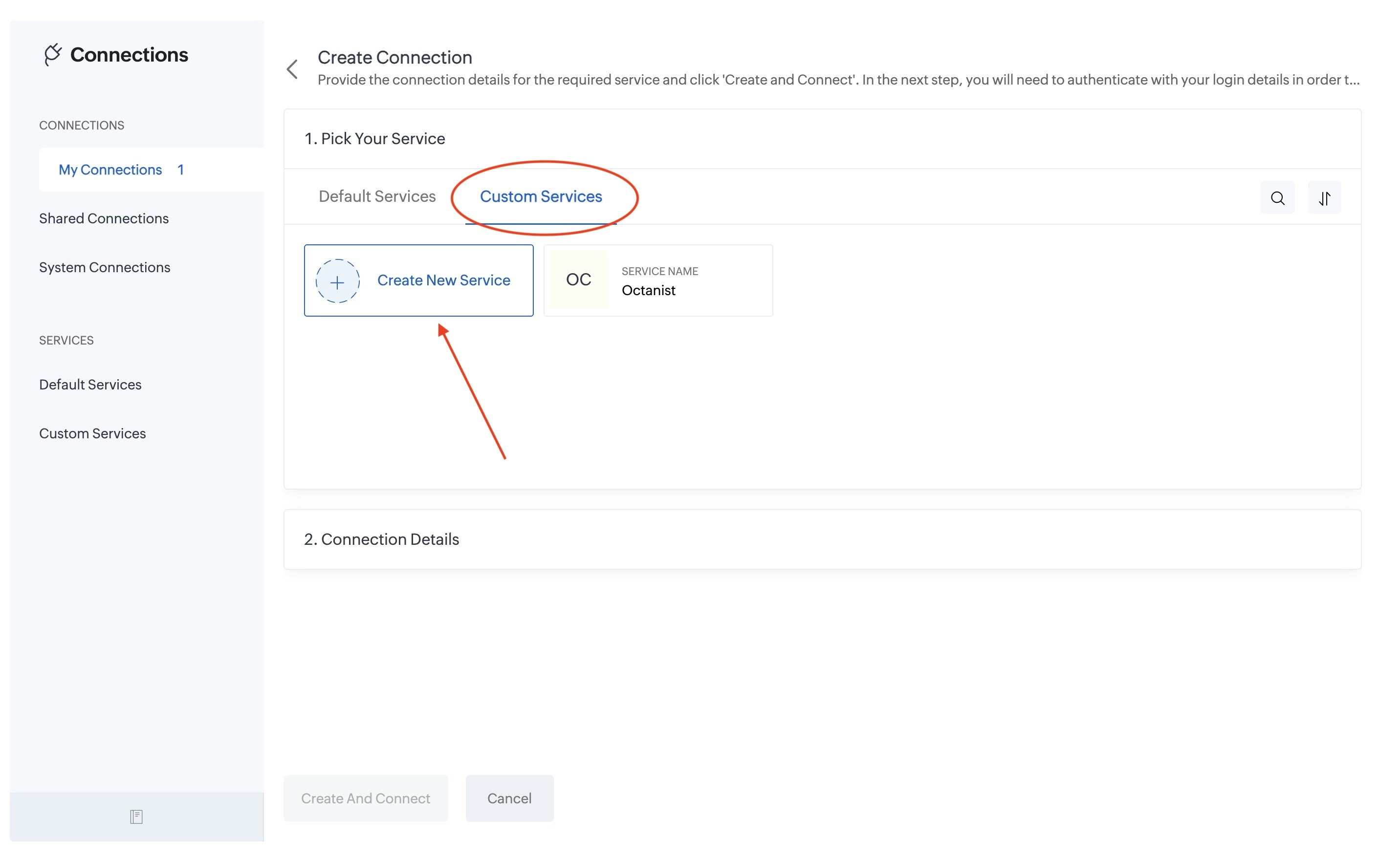
- Select Custom Services and click on Create New Service.
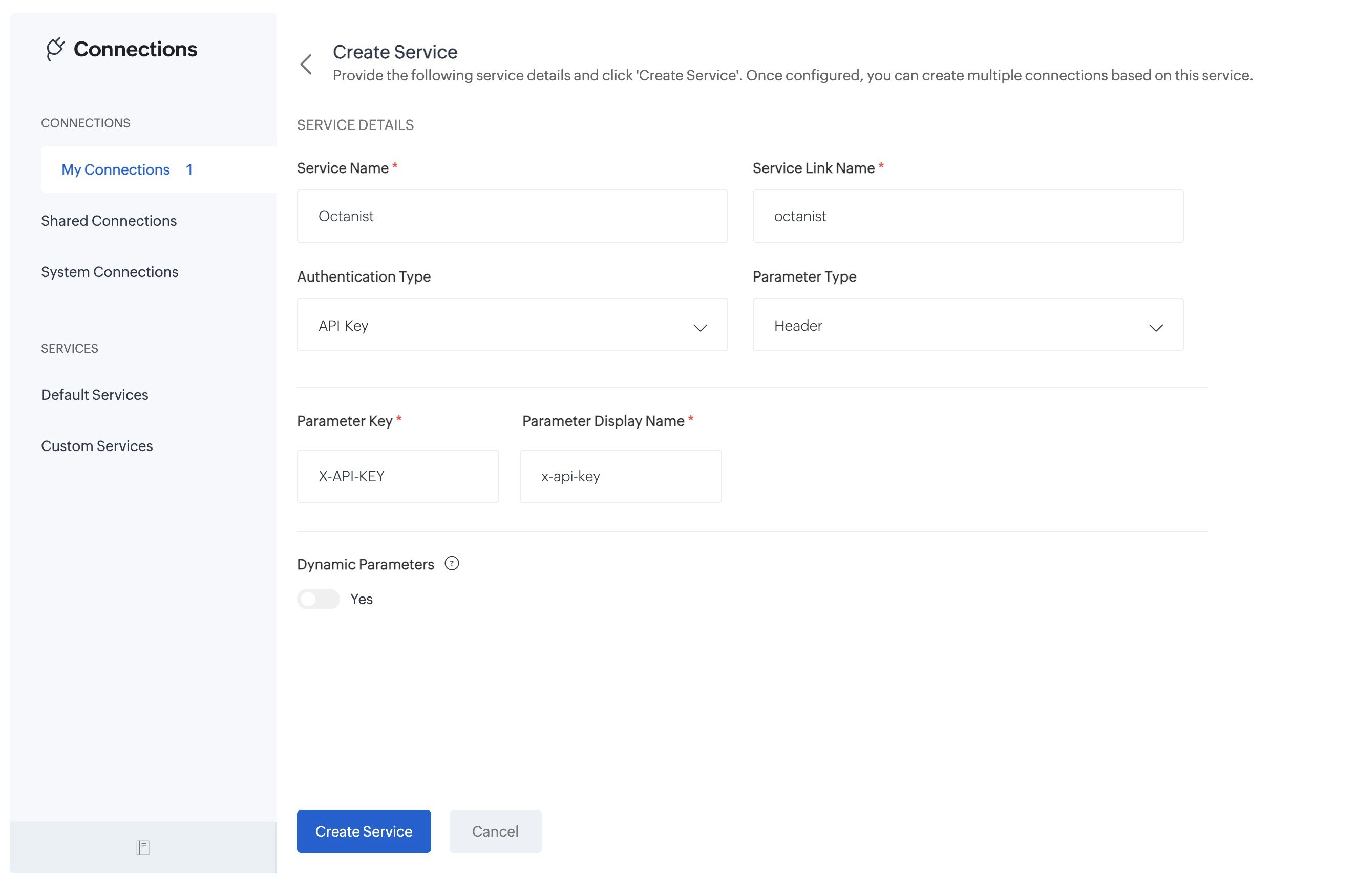
- Here we are creating a new service. We give it the following details:
- Name: give it a name that is easy to identify, such as Octanist.
- Authentication Type: select API Key.
- Parameter Type: select Header.
- Parameter Key: enter X-API-KEY.
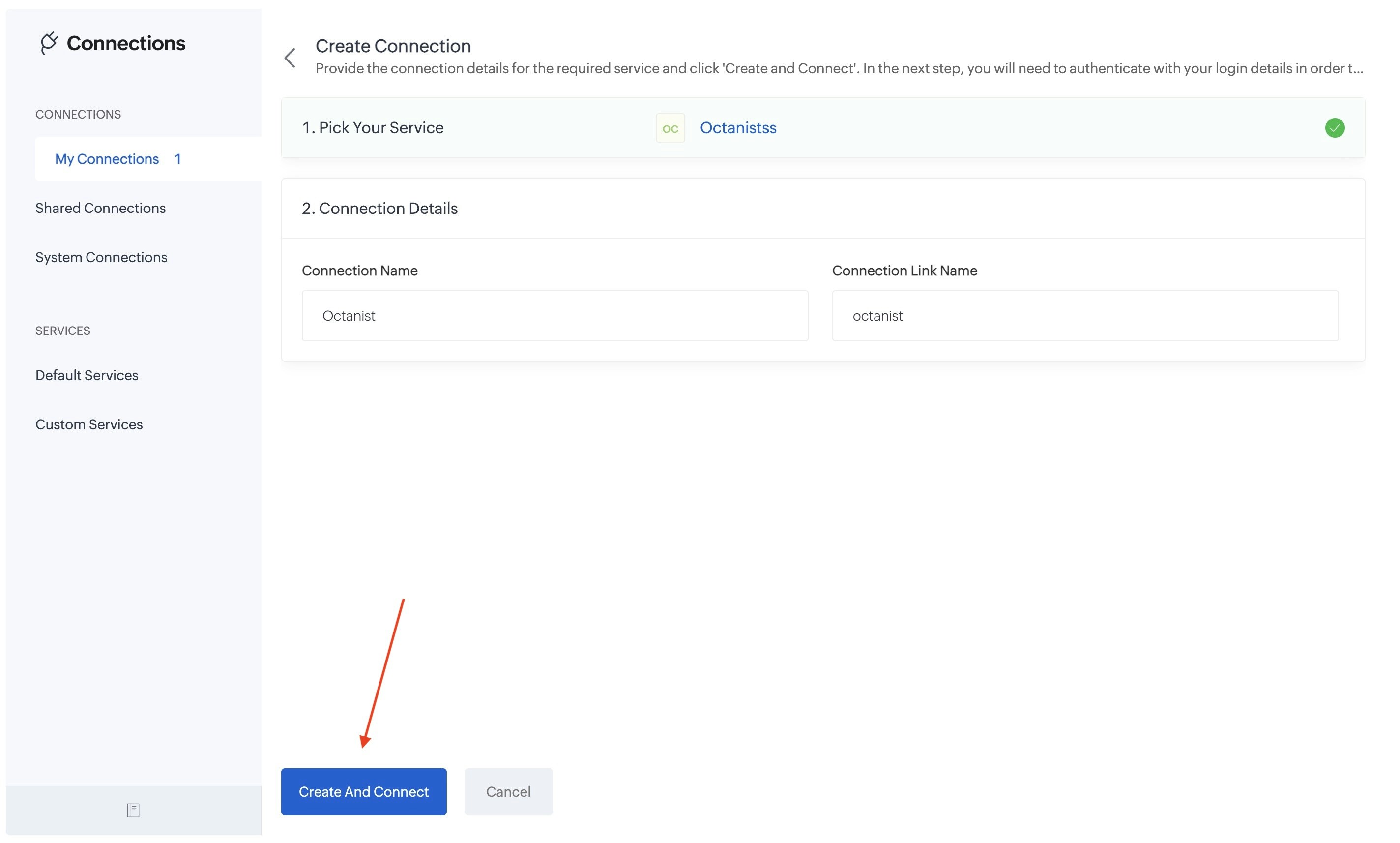
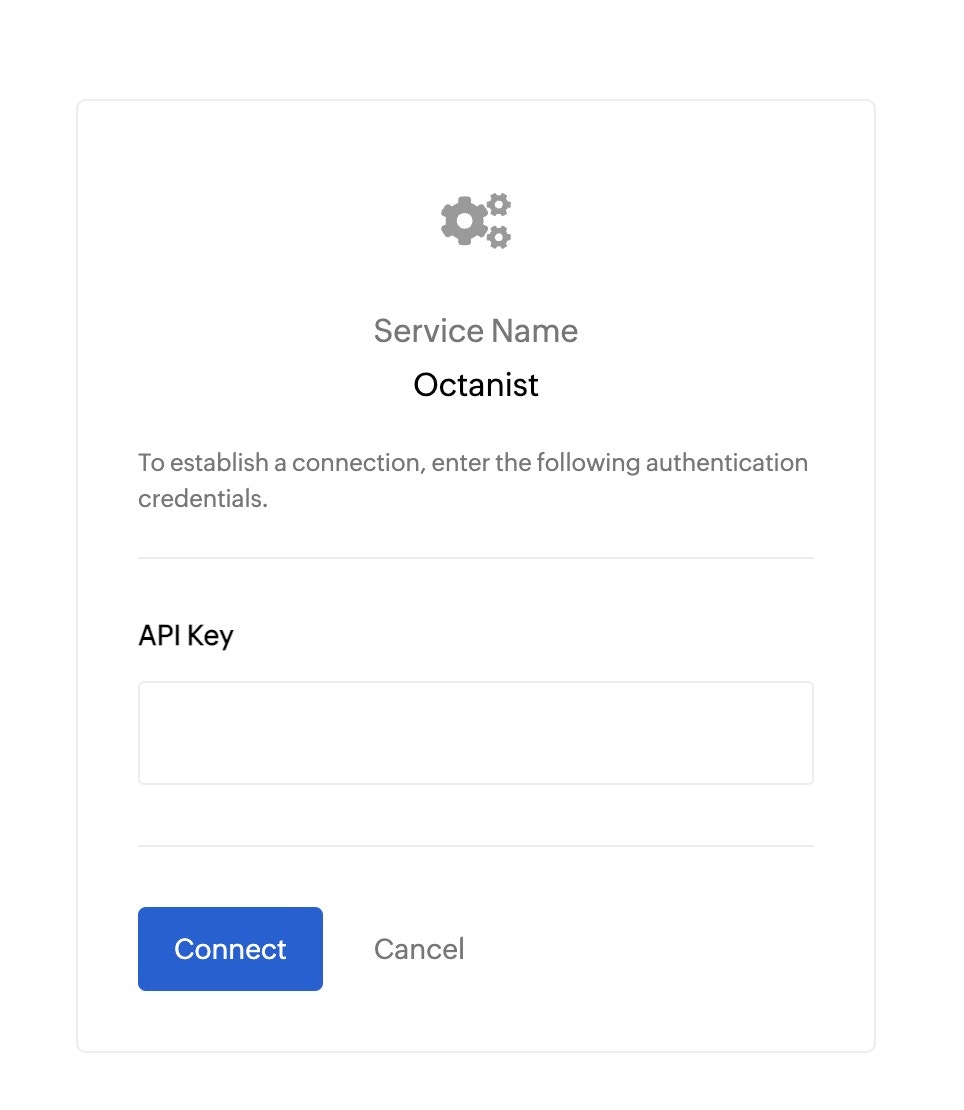
- Then give the connection a name. Here we give it the name Octanist. and click on Create And Connect.
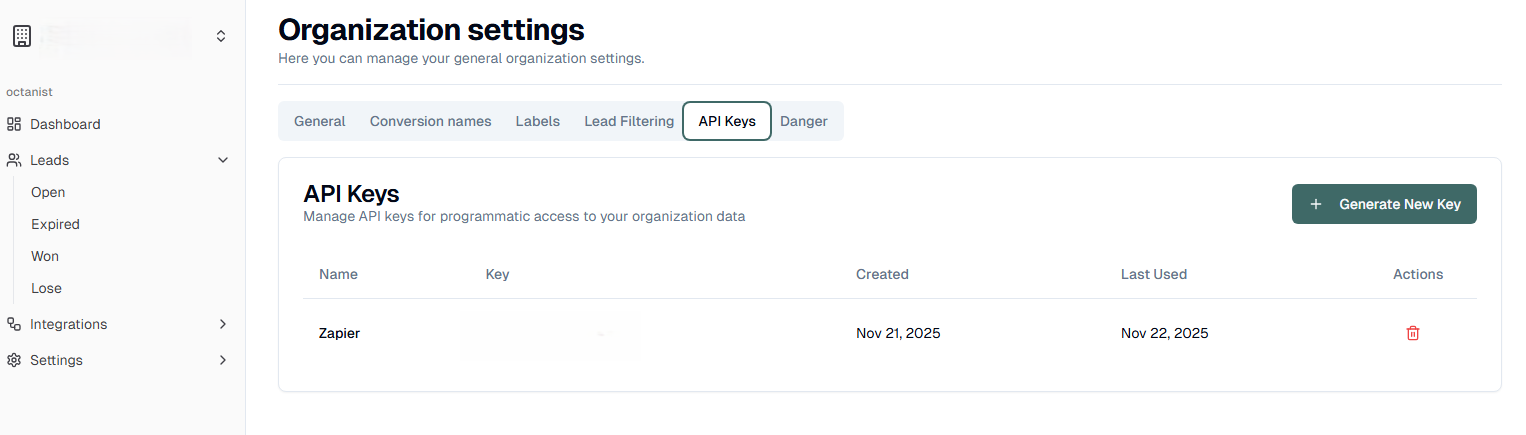
- You can find this in Octanist → Settings → General → API Key.
-
Create a new API key and give it a clear and descriptive name.
- Click Connect.
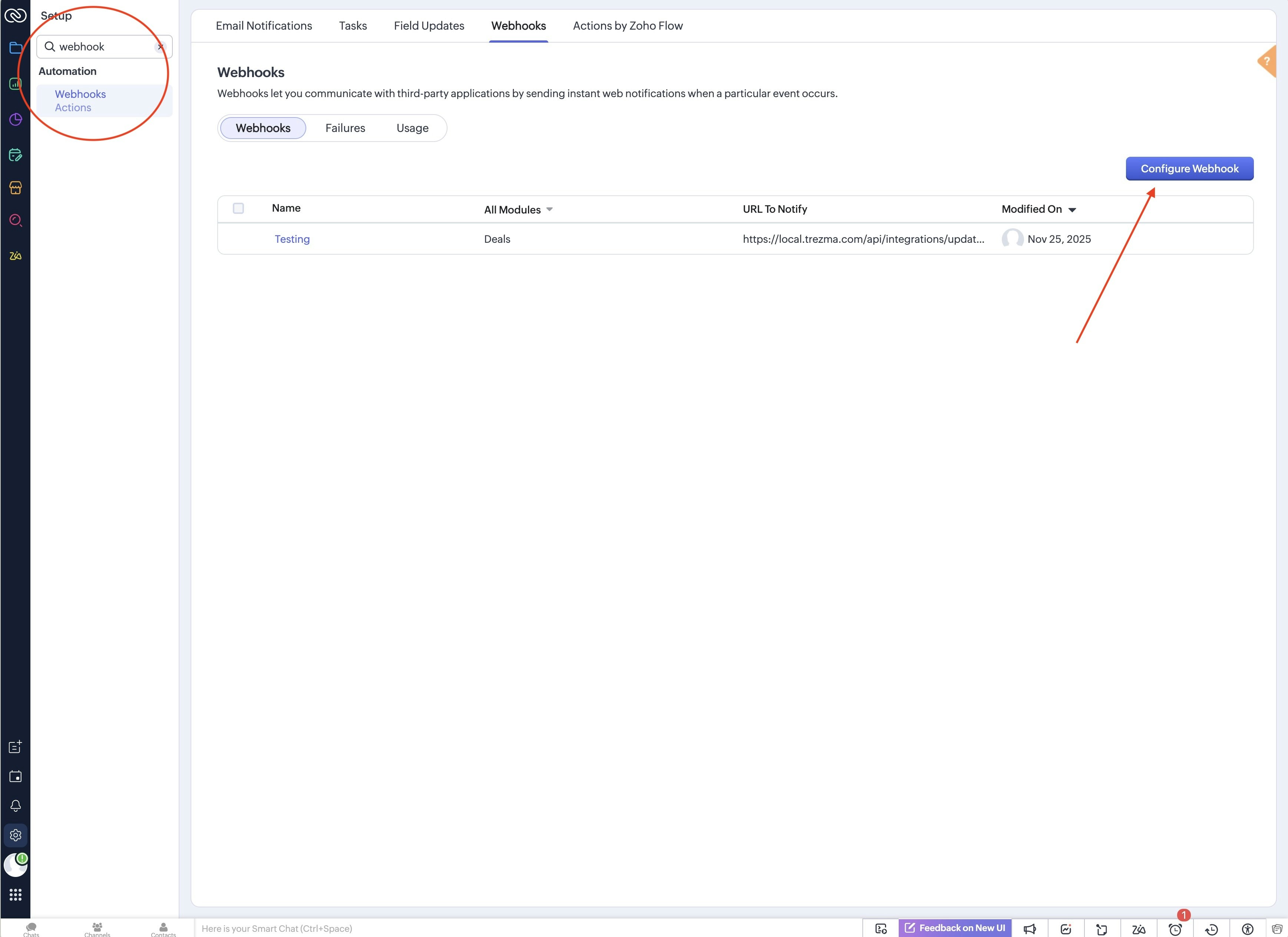
- Search for webhooks and click Configure Webhook.
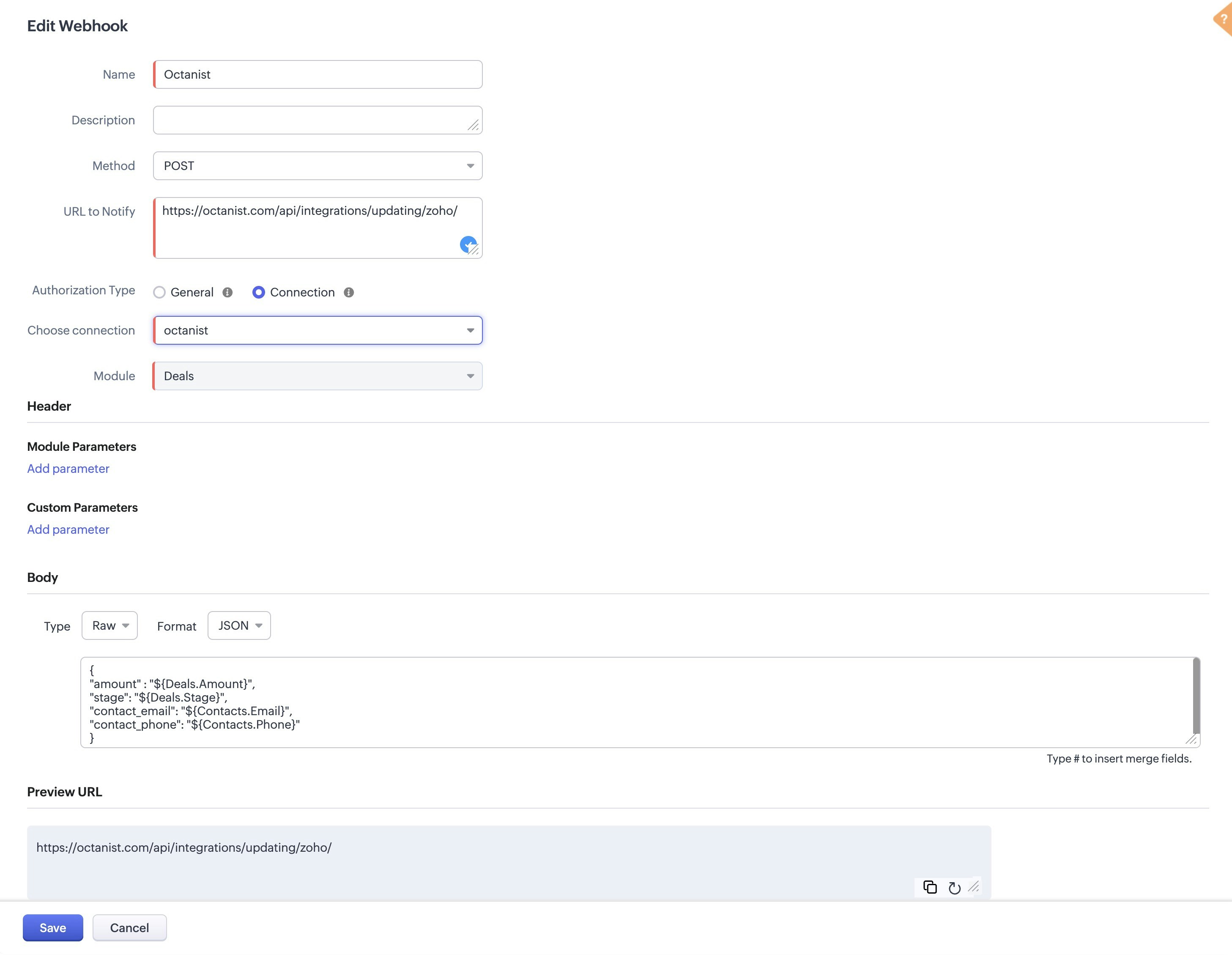
- Now we will create a new webhook. Here are the fields we need to fill in:
- Name: give it a name that is easy to identify, such as Octanist.
- Method: select POST.
-
URL to Notify: enter:
https://octanist.com/api/integrations/updating/zoho/ - Authorization Type: select Connection and choose the connection you created.
- Module: select Deals.
-
Body:
- Type: select Raw.
- Format: select JSON.
- Content: enter the following JSON:
- Save
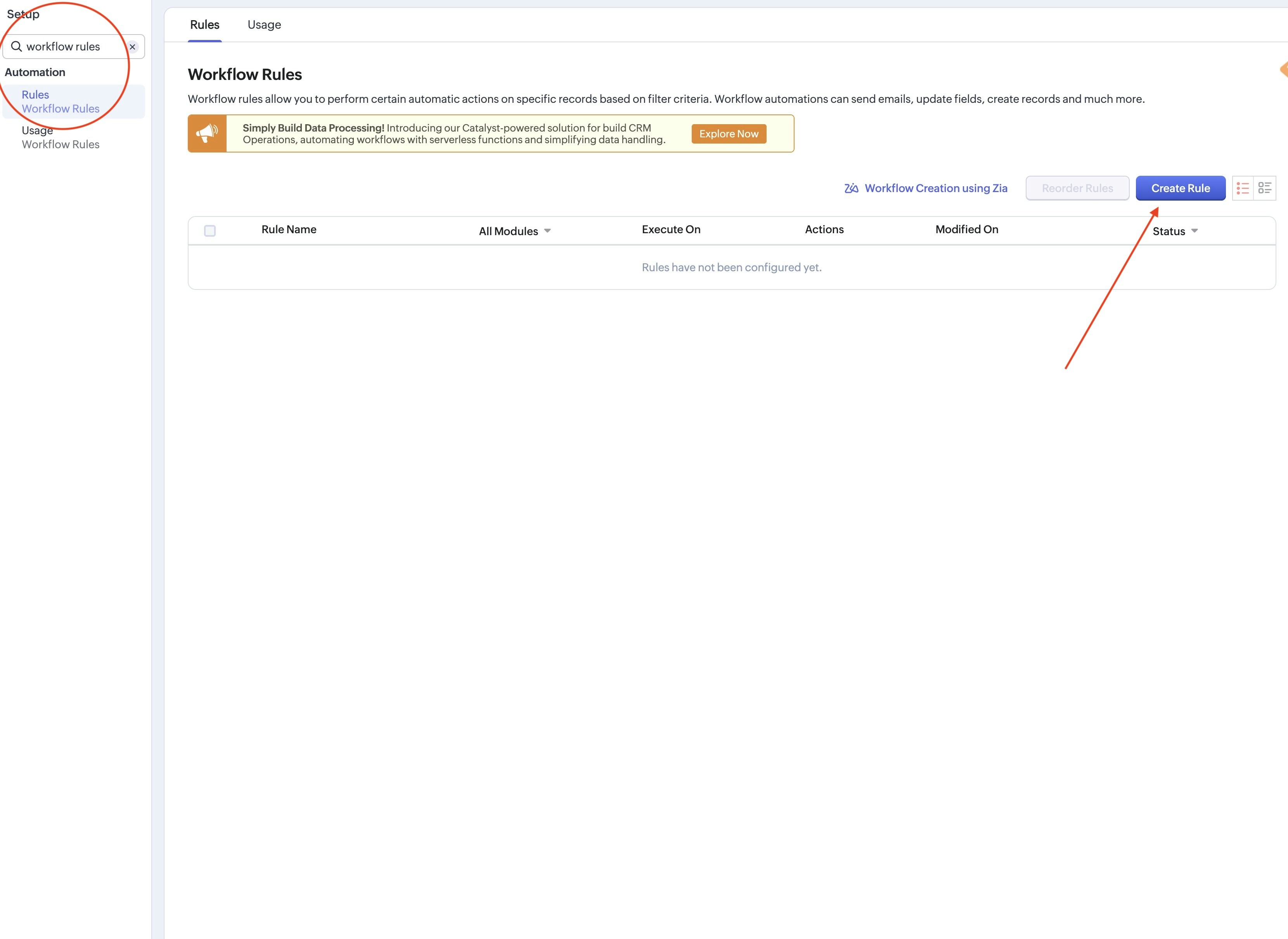
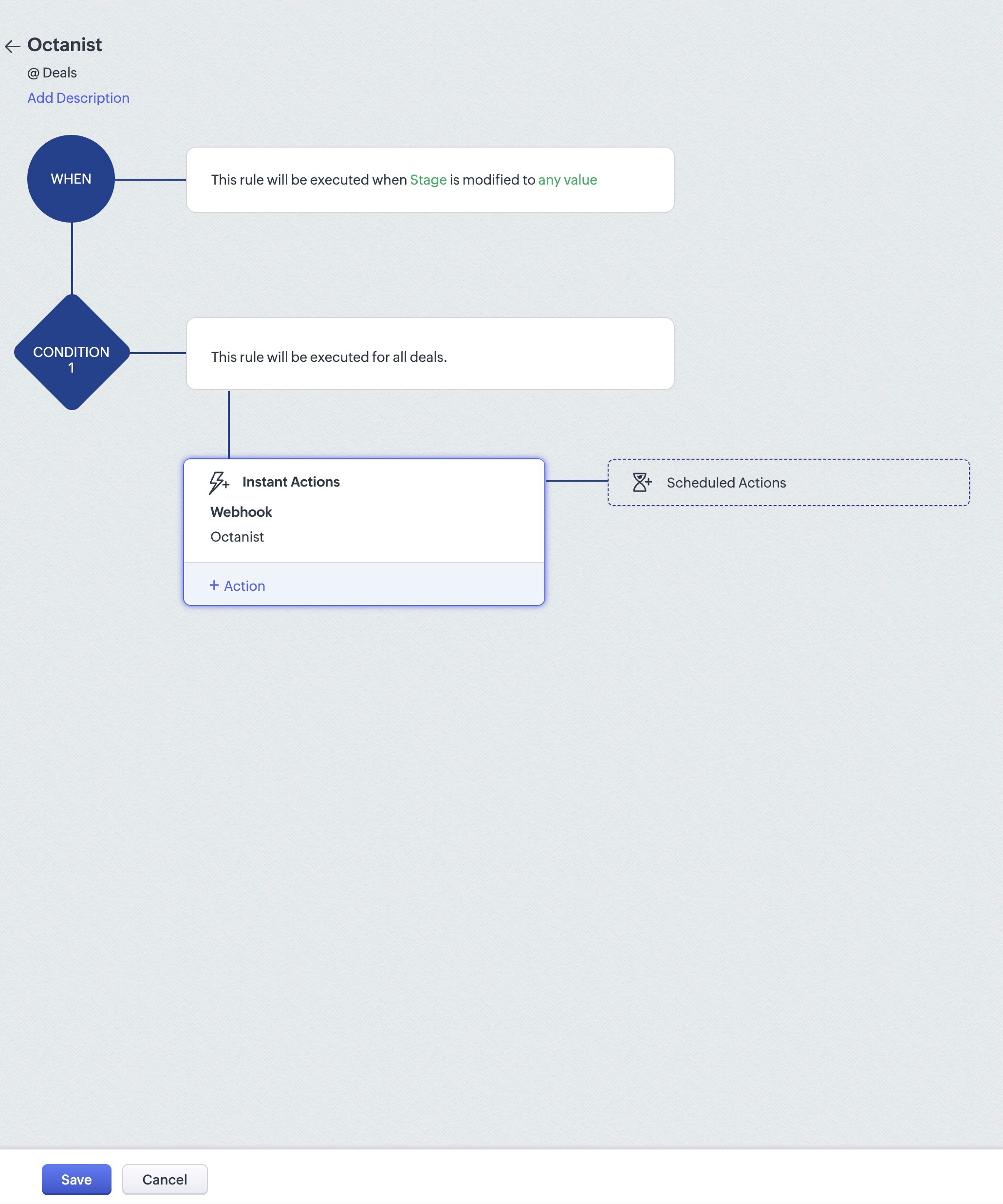
- Search for workflow rules and select Rules. On the page click on Create Rule.
- You will see this popup. Give the following information:
- Module: select Deals.
- Rule Name: give it a name that is easy to identify, such as Octanist.
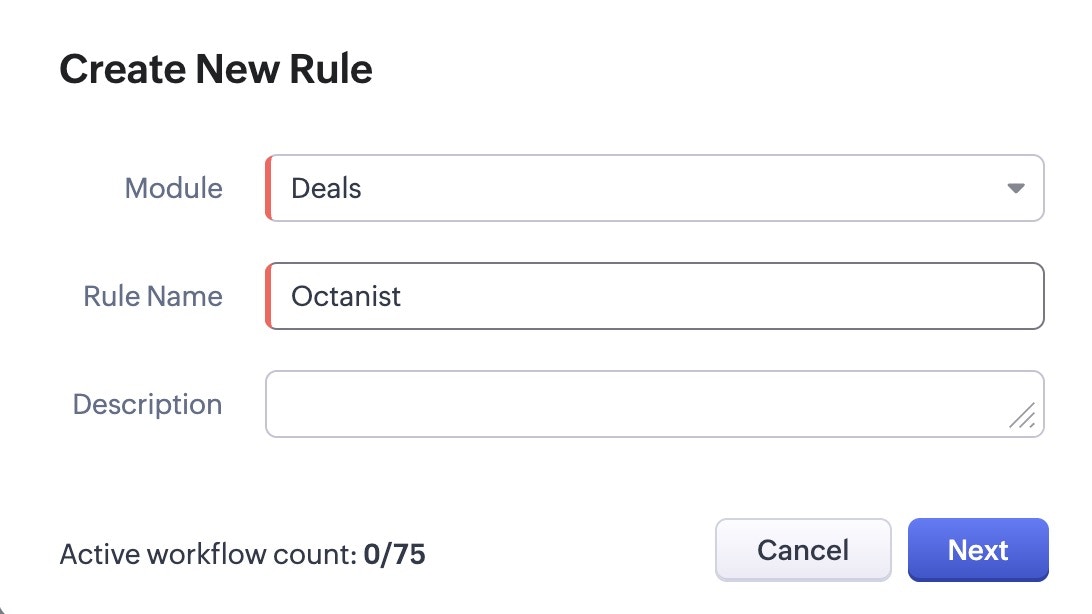
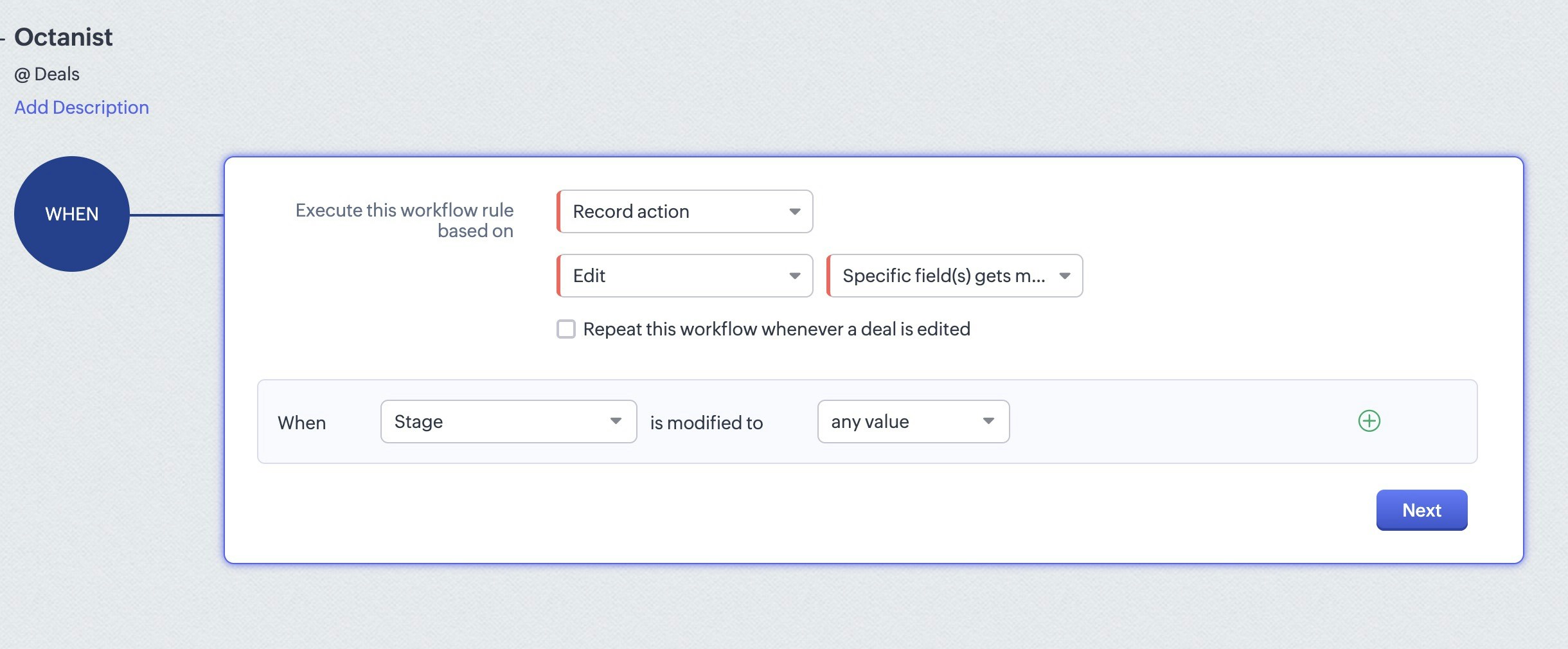
- When creating a rule. For the WHEN step choose the following options:
- Execute this workflow rule based on: select Record action.
- Then select Edit and Specific field(s) get modified.
- When: Stage is modified to any value.
- Click Next.
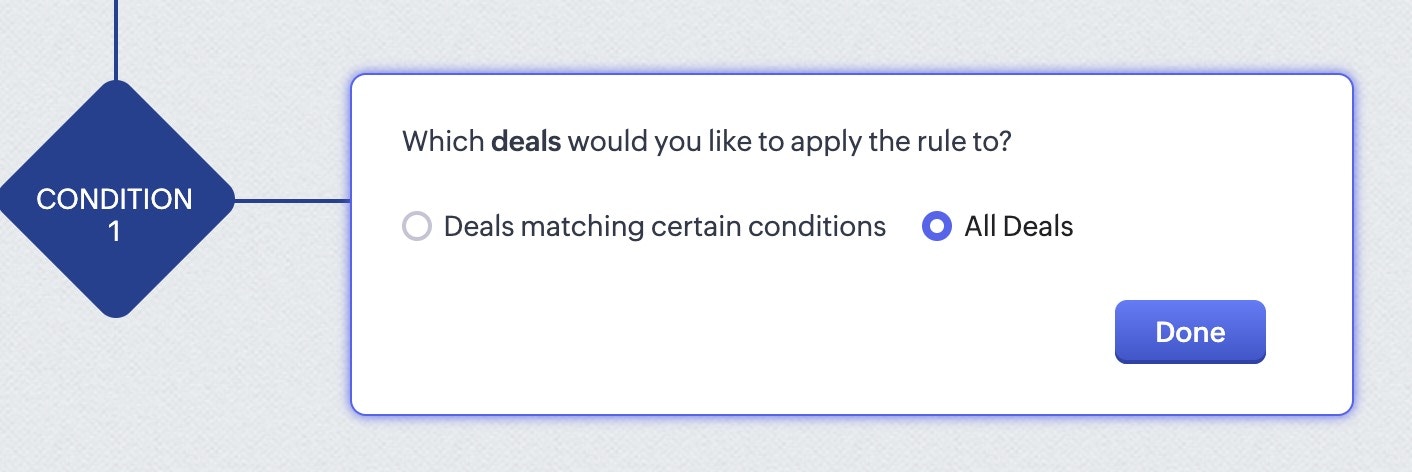
- Select All Deals and click Done.
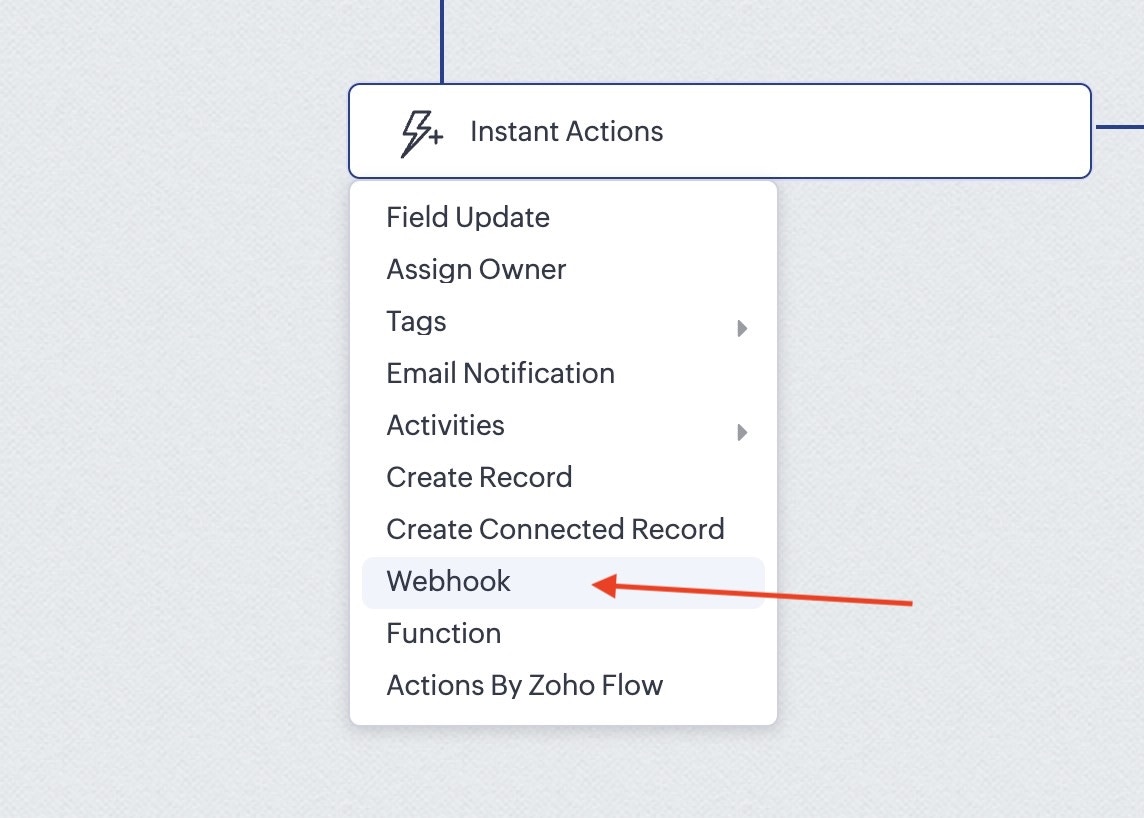
- For the action select Webhook and select the webhook we created earlier.
- Click Save.
2. Octanist
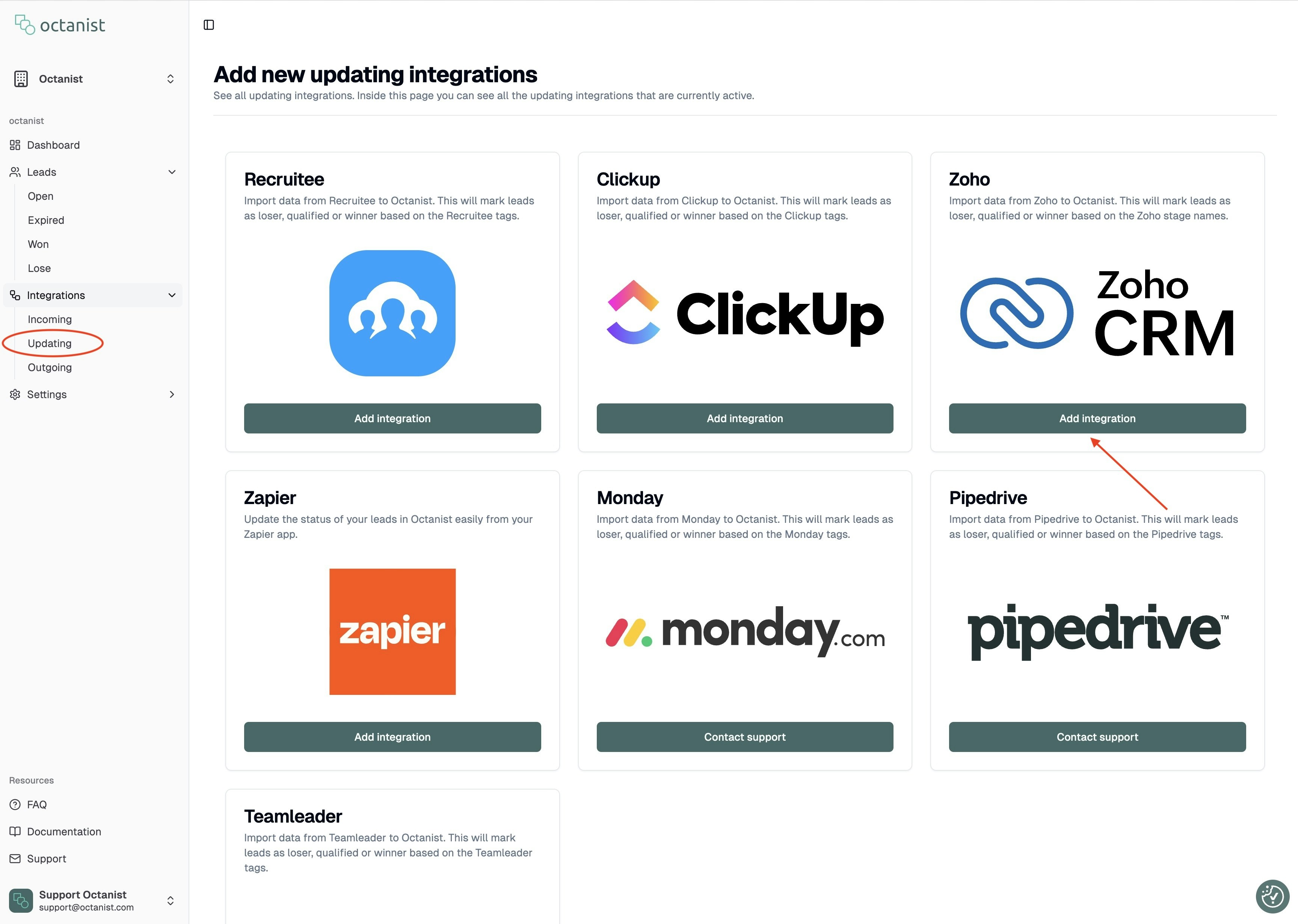
- Go to Octanist and navigate to [Integrations > Updating > Add New].
- Choose Zoho CRM and click Add Integration.
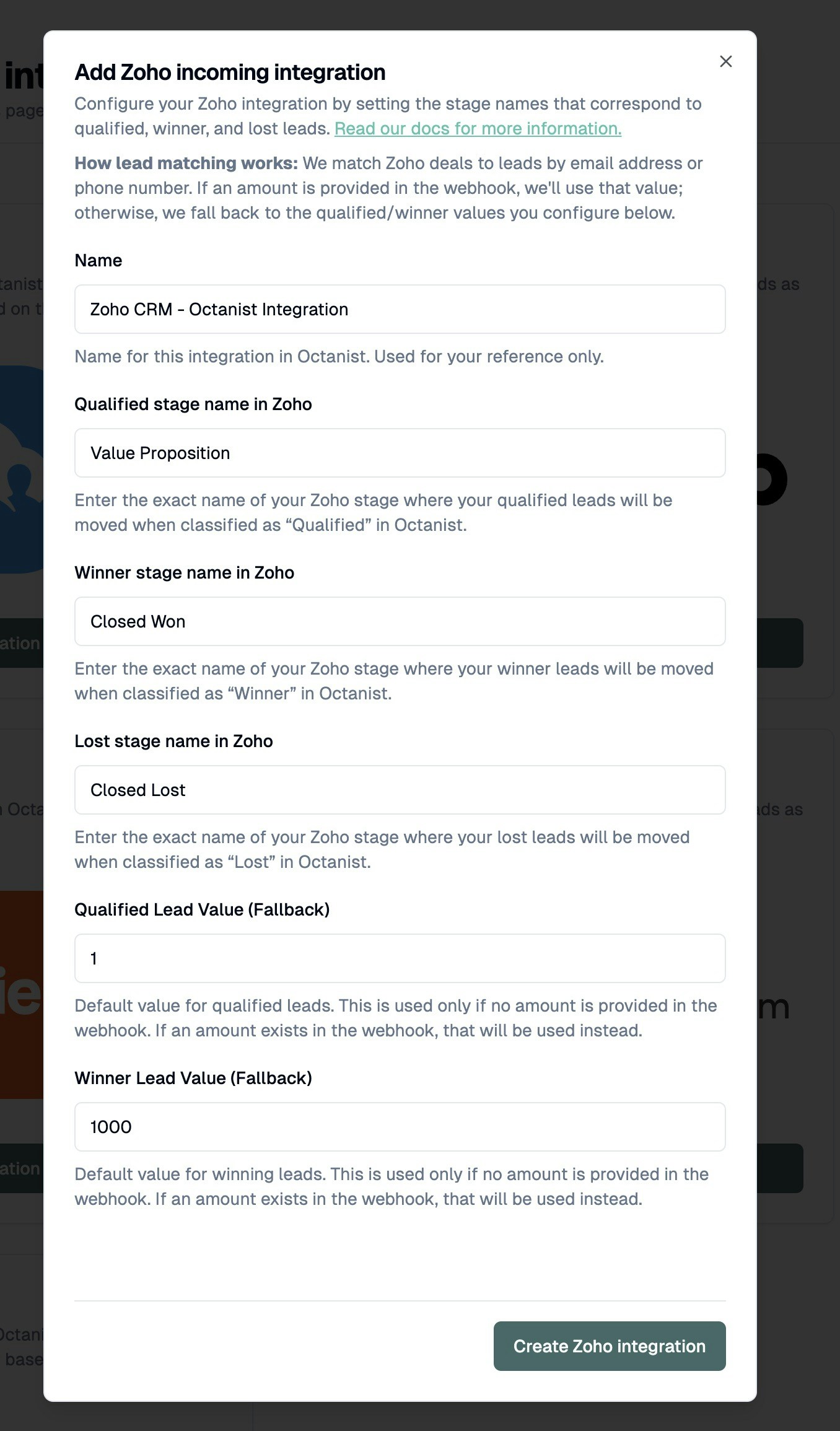
- Add a Name: give it a name that is easy to identify, such as Octanist - Zoho CRM Integration.
- For each of the stages select the name of the stage as it is in Zoho CRM.

- Enter fallback values when the amount field is not present.
- Then click Create Zoho CRM Integration.